POSITION GENERATOR DOCUMENTATION
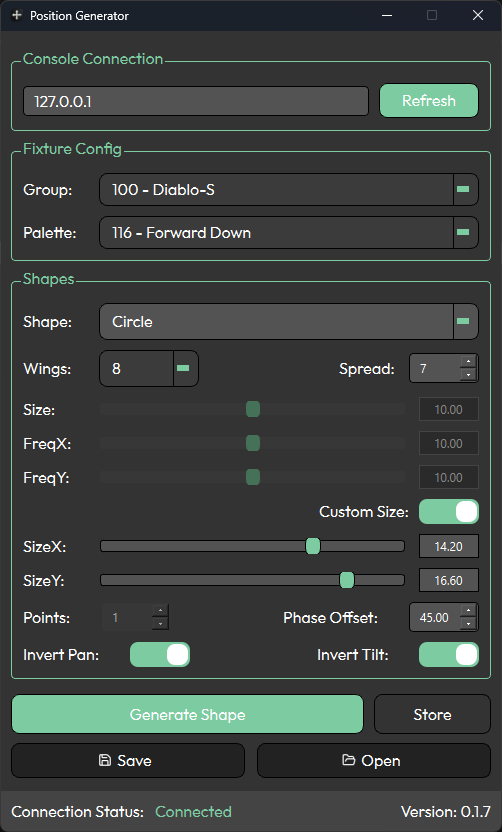
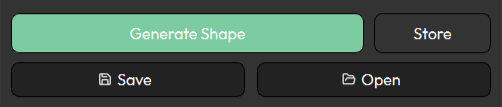
Position Generator is a tool for creating and storing position data on Avolites Titan consoles. The application consists of three main sections — Console Connection, Fixture Config, and Shapes — along with four action buttons: Generate Shape, Store, Save, and Open. A status bar at the bottom of the interface displays the current connection state.
Position Generator creates positions relative to a selected position palette. This means that by referencing a base palette (such as your "Forward" or "Home" position), updating your show for different venues becomes straightforward — simply update the reference palette on the console and regenerate the positions with Position Generator. Recalling your configuration is easy, as Position Generator allows you to save and open presets.
CONSOLE CONNECTION
The Console Connection section establishes communication with an Avolites Titan console or any device running Titan software (such as Titan Go or the Titan Simulator).
To connect:
Enter the IP address of the target console or Titan device
Click Connect
The current connection status is reflected in the status bar, confirming whether the link was successful or if any issues occurred.

FIXTURE CONFIG
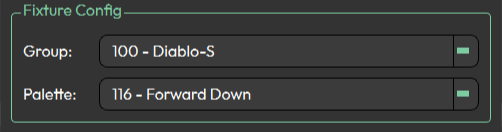
Once a console connection is established, the Fixture Config section populates with data from the connected console. Both a group and a palette must be selected before generating a shape.
Groups — Displays available Group Handles from the console
Palette — Displays available position palettes from the console
Note: If a position palette still has its default legend (the name automatically assigned when the palette was created), use the palette's user number to identify the correct palette.
SHAPES
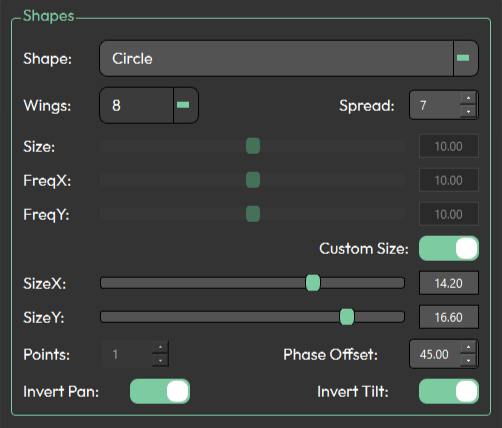
The Shapes section contains 13 parameters that define the generated position pattern.
Shape
The foundation of the generated position pattern. Position Generator offers 12 base shapes:
Circle
Oval
Figure Eight
Lissajous
Square
Triangle
Spiral
Wave
Star
Pan Scissors
Tilt Scissors
Fan
Wings
Controls symmetrical mirroring of fixtures within the group.
0 — No symmetry; all fixtures follow the same path
2 — Group is split in half; one side mirrors the other
4 — Group is split into four sections; sections 2 and 4 mirror sections 1 and 3
8 — Group is split into eight mirrored sections
16 — Group is split into sixteen mirrored sections
Spread
Determines how fixtures are distributed across the shape's steps. If the spread value is lower than the fixture count, fixtures will wrap around and repeat steps. For example, with a spread of 12 and 16 fixtures, fixtures 1–12 occupy steps 1–12, then fixture 13 returns to step 1, fixture 14 to step 2, and so on.
If the spread is higher than the fixture count, only the steps needed for the available fixtures are used. For example, with 7 fixtures and a spread of 8, only steps 1–7 are used.
When combined with wings, spread interacts with the mirror point. For example, with 4 fixtures, wings 2, and spread 4, the result would be: 1 2 | 2 1 (steps 3 and 4 fall past the mirror point). With 12 fixtures, wings 2, and spread 4, the result would be: 1 2 3 4 1 2 | 2 1 4 3 2 1.
Size
The maximum percentage offset from the referenced position palette, applied equally to both the horizontal (pan) and vertical (tilt) axes. This value defines how far fixtures can move from the base position, both positively and negatively.
FreqX
Frequency multiplier (percentage) for the horizontal (pan) axis. Affects shapes like Lissajous and Wave — a lower value produces a wider, gentler curve; a higher value produces tighter, more compressed curves.
FreqY
Frequency multiplier (percentage) for the vertical (tilt) axis. Works the same as FreqX but applied to the vertical axis.
Custom Size Toggle
Disables the Size slider and enables the SizeX and SizeY sliders, allowing the horizontal and vertical offsets to be set independently.
SizeX
The maximum horizontal (pan) percentage offset from the referenced position palette. Available when Custom Size Toggle is enabled.
SizeY
The maximum vertical (tilt) percentage offset from the referenced position palette. Available when Custom Size Toggle is enabled.
Points
Only available when the Star shape is selected. Sets the number of points on the star. Minimum value is 1.
Phase Offset
Rotates where the first fixture sits on the shape, from 0 to 360 degrees. At 0, the first fixture is positioned at 12 o'clock; increasing the value rotates this clockwise (e.g., 45 is approximately 1:30, 90 is 3 o'clock, and so on).
Invert Pan
Inverts the pan values of the generated shape.
Invert Tilt
Inverts the tilt values of the generated shape.
BUTTONS
Generate Shape
Generates the shape based on the current settings.
Store
Stores the generated positions as a position palette in Titan for the selected group, using the next available position palette slot.
Save
Saves the current Position Generator configuration as a preset file.
Open
Opens a previously saved preset file.
GETTING STARTED
Connect — Enter the IP address of your Titan console and click Connect. Verify the connection in the status bar.
Select Group — Choose the fixture group you want to generate positions for.
Select Palette — Choose the reference position palette (e.g., your "Forward" or "Home" position).
Configure Shape — Select a shape and adjust the parameters to suit your needs.
Generate — Click Generate Shape to preview the positions on your fixtures.
Store — Click Store to save the generated positions as a new position palette in Titan.
Save Preset — Optionally, click Save to store your Position Generator configuration for future use.
Positions not looking right? Please check our page for creating groups and group layouts for our apps.