mvr fixture importer
MVR Fixture Importer is a tool for importing MVR (My Virtual Rig) files into Avolites Titan consoles. The application parses MVR and GDTF fixture data, allowing users to extract and map fixture information for use in their Titan showfiles.
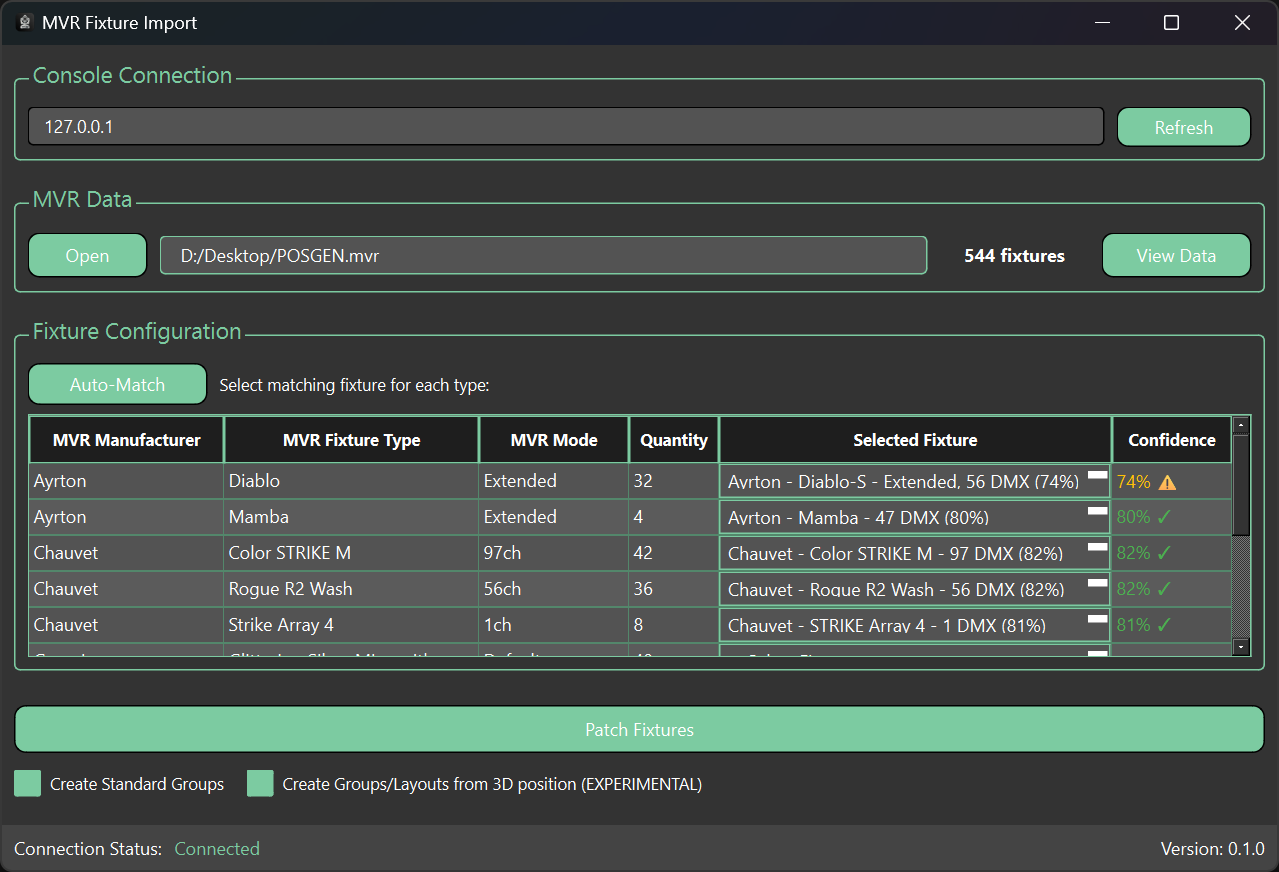
CONSOLE CONNECTION
The Console Connection section establishes communication with an Avolites Titan console or any device running Titan software (such as Titan Go or the Titan Simulator).
To connect:
Enter the IP address of the target console or Titan device
Click Connect
The current connection status is reflected in the status bar, confirming whether the link was successful or if any issues occurred.
Once connected, the Connect button changes to Refresh. Clicking Refresh updates the lists of fixtures, groups, palettes, and masters from the console.

Mvr data
The MVR Data section is used to load and inspect the MVR file before import into Titan.
Open MVR
Selects and opens the MVR file to be imported.
Fixture Count
Displays the total number of fixtures found in the loaded MVR file.
View Data
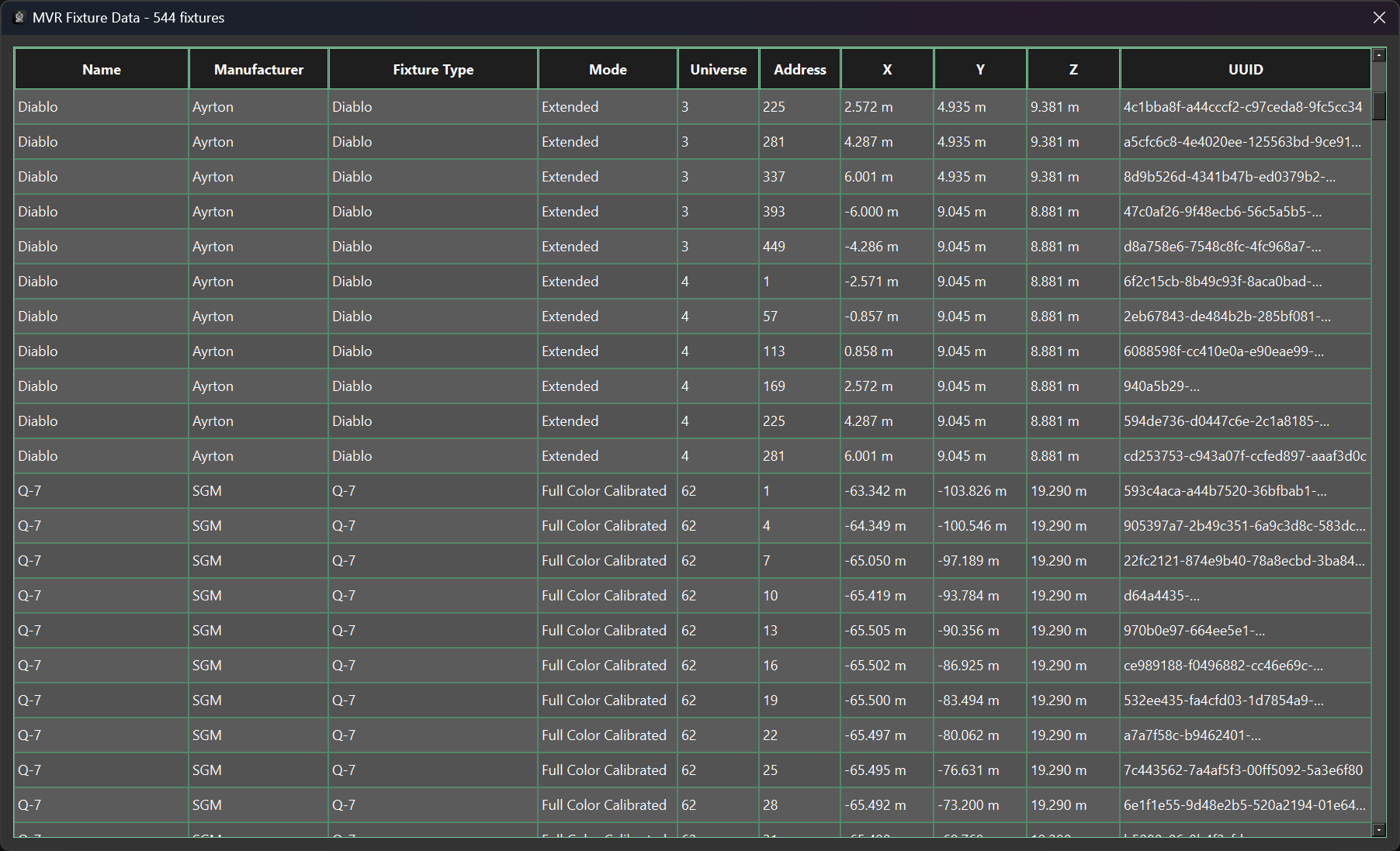
Opens a table view displaying fixture data contained in the MVR file.
Data Table
Displays one row per fixture.
Name
Fixture name as defined in the MVR file.
Manufacturer
Fixture manufacturer as defined in the MVR file.
Fixture Type
Fixture model or type identifier from the MVR file.
Mode
Fixture mode defined in the MVR file.
Universe
DMX universe assigned to the fixture.
X
Fixture X position in the MVR coordinate space.
Y
Fixture Y position in the MVR coordinate space.
Z
Fixture Z position in the MVR coordinate space.
UUID
Unique identifier assigned to the fixture in the MVR file.

fixture configuration
The Fixture Configuration section defines how fixtures in the MVR file are matched to fixtures in the Titan database.
Auto-Match
Attempts to automatically match MVR fixtures to Titan fixtures. Intended for fast setup and should be reviewed before import.
Match Table
Displays fixture matches and confidence levels.
MVR Manufacturer
Manufacturer name as defined in the MVR file.
MVR Fixture Type
Fixture type as defined in the MVR file.
MVR Mode
Fixture mode as defined in the MVR file.
Quantity
Number of fixtures of this type found in the MVR file.
Selected Fixture
Dropdown allowing manual selection of a Titan fixture. The list contains the 10 most relevant matches. If Auto-Match is used, high-confidence matches are pre-selected.
Confidence
Indicates the importer’s confidence that the selected Titan fixture matches the MVR fixture.

BUTTONS
The Buttons section contains actions used to patch fixtures and generate groups in Titan.
Patch Fixtures
Patches all fixtures currently matched in the table into Titan.
Create Standard Groups
Creates one group per fixture type based on the imported fixtures.
Create Groups / Layouts from 3D Position (EXPERIMENTAL)
Creates groups with the prefix fx using fixture 3D positions to determine fixture order for effects. This feature is experimental and may not produce optimal results.

getting started
Connect — Enter the IP address of your Titan console and click Connect. Verify the connection in the status bar.
Open MVR File — Load your MVR file to extract the fixture data and layout information.
Match Fixtures — Review the imported fixtures and match them to the corresponding fixture types in Titan.
Patch — Send the matched fixtures to your Titan console to complete the patch.