MTC LISTENER DOCUMENTATION
MTC Listener is a tool for synchronizing MIDI Time Code with Avolites Titan consoles. The application consists of two main sections — Console Connection and MTC Config. A status bar at the bottom of the interface displays the current connection state.
Disclaimer: MTC Listener is intended for pre-production and emergency situations where timecode programming is required. Use during live show playback is not advised. LiveLabs Creative accepts no responsibility for any issues arising from use in live performance environments.
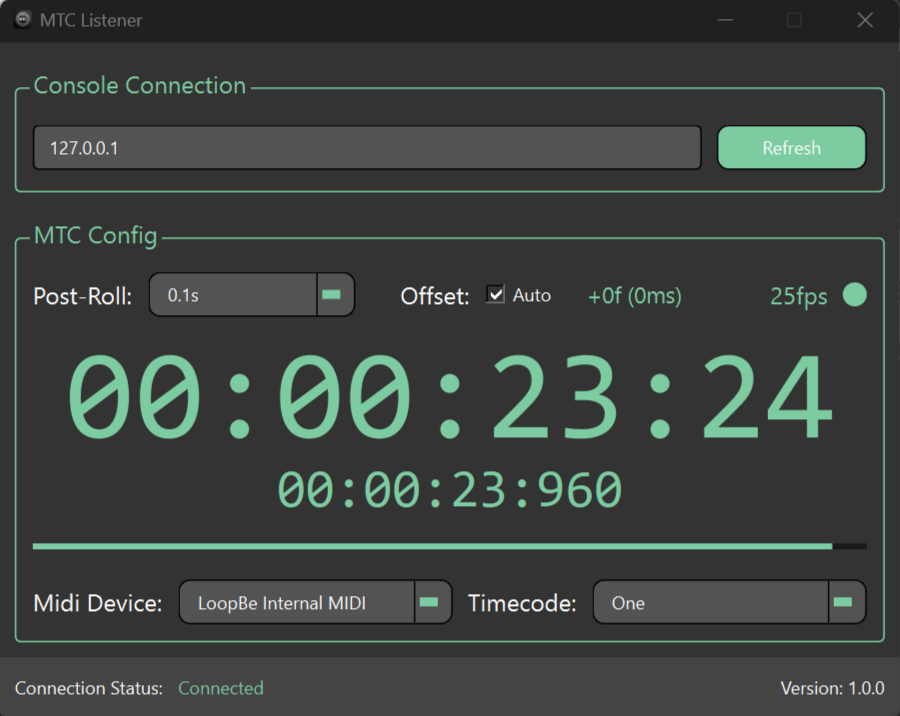
CONSOLE CONNECTION
The Console Connection section establishes communication with an Avolites Titan console or any device running Titan software (such as Titan Go or the Titan Simulator).
To connect:
Enter the IP address of the target console or Titan device
Click Connect
The current connection status is reflected in the status bar, confirming whether the link was successful or if any issues occurred.
Once connected, the Connect button changes to Refresh. Clicking Refresh updates the lists of fixtures, groups, palettes, and masters from the console.

MTC CONFIG
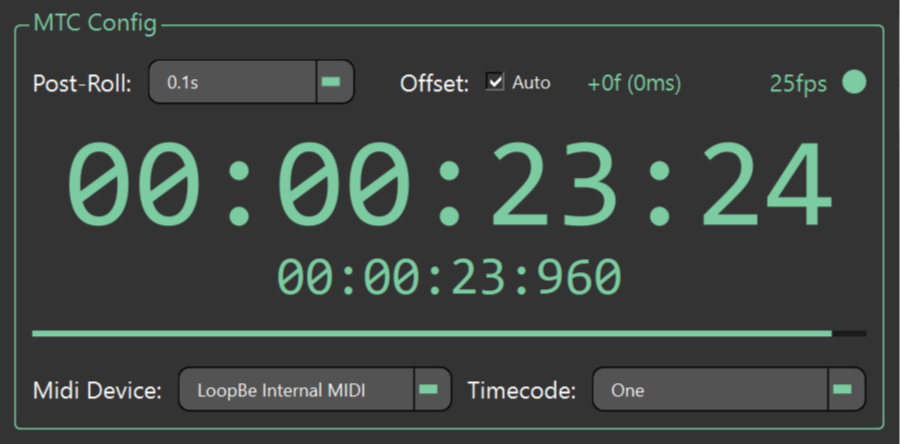
The MTC Config section contains all parameters for configuring timecode input and synchronization with Titan.
MIDI Device Selection
Selects the MIDI input device from which MTC Listener will receive MIDI Time Code.
Timecode Clock Selection
Selects the target timecode clock within Titan that will receive the synchronized timecode.
Post Roll
Configures the post roll behaviour for timecode playback.
Offset (Network Latency)
Applies a time offset to compensate for network latency between MTC Listener and the Titan console.
FPS Detection & MTC Receive Status
Displays the detected frame rate of the incoming timecode and indicates whether MTC is actively being received.
Incoming MIDI Timecode
A large timer display showing the current MIDI Time Code being received from the selected MIDI device.
Avolites Timecode
A smaller timer display showing the timecode value currently being sent to the Titan console.
Frame Progress Bar
A visual indicator that fills across each second, divided into segments matching the detected frame rate. This provides a real-time visual representation of individual frames as they pass.
GETTING STARTED
Connect — Enter the IP address of your Titan console and click Connect. Verify the connection in the status bar.
Select MIDI Device — Choose the MIDI input device that will provide the timecode signal.
Select Timecode Clock — Choose the target timecode clock in Titan to receive the synchronized timecode.
Configure Post Roll (Optional) — Adjust the post roll setting if required.